Page Labels and Source Origin
Enhance your application's user experience by leveraging Page Labels and Source Origin metadata. These features enable you to create intuitive navigation experiences that link citations directly to their source pages in PDF documents.
These features are available for all indexed documents. Always implement graceful fallbacks when metadata is missing to ensure a robust user experience.
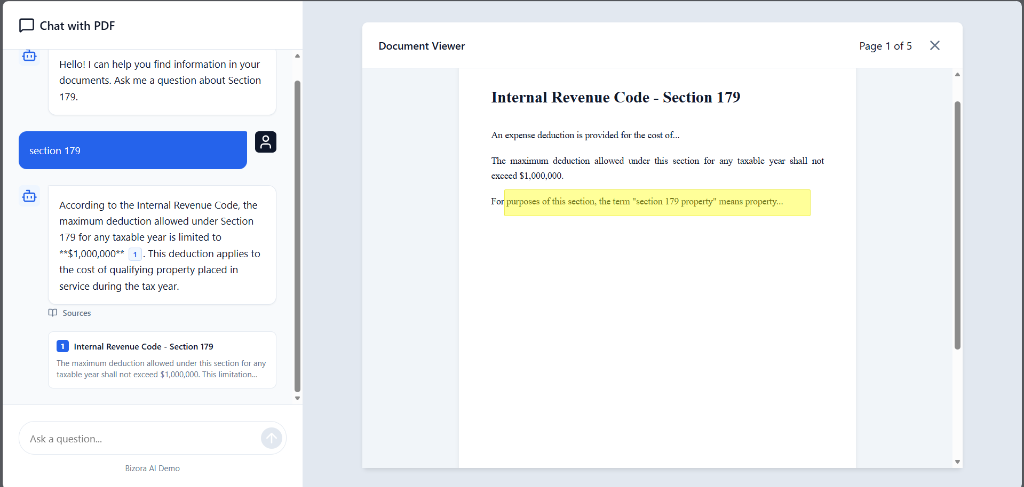
See it in action. We have built a complete, zero-dependency example that implements page navigation, highlighting, and smooth scrolling. View the demo →
Page Labels
Page labels identify the specific page within a PDF document where cited content appears. This metadata enables you to implement intelligent navigation features such as auto-scrolling to relevant pages and visual page highlighting.
Data Structure
Page labels are found in the source item's metadata object. The value represents the page number within the document.
Format:
- Type:
numberorstring - Value: Page number (e.g.,
1,2,"5") - Location:
source.metadata.page_label
Example Response
{
  "node_id": "source_abc123",
  "text": "The tax rate for qualified dividends...",
  "metadata": {
    "page_label": 4,
    "file_path": "taxes/federal/Internal Revenue Code/section_1.pdf",
    "sourceOrigin": "https://uscode.house.gov/view.xhtml?req=section_1"
  }
}
How Page Labels Are Generated
Page labels are automatically extracted during document indexing:
- PDF Documents: Each page is parsed individually, and the page number is captured from the PDF metadata
- HTML Documents: Single-page documents receive
page_label: 1 - Multi-page Documents: Sequential page numbers are assigned (1, 2, 3, ...)
Backend Implementation Example:
# During PDF indexing
for doc in llama_docs:
    page_num = doc.metadata.get("page")  # Extract from PDF metadata
    doc.metadata = {
        "file_path": key,
        "page_label": page_num,  # Assign page number
    }
Source Origin
The sourceOrigin field provides a direct URL to the original web source of the document. This is particularly valuable for citing authoritative sources such as government regulations, legal documents, or verified publications.
Data Structure
Format:
- Type:
string(URL) - Location:
source.metadata.sourceOrigin - Purpose: Link to original document source
Example Response
{
  "node_id": "source_def456",
  "text": "According to the official regulation...",
  "metadata": {
    "sourceOrigin": "https://www.irs.gov/pub/irs-pdf/p17.pdf",
    "page_label": 12,
    "file_path": "taxes/federal/publications/p17.pdf"
  }
}
Frontend Integration
Recommended Implementation: Page-Level Highlighting
The industry-standard approach is to highlight entire pages rather than specific text regions. This provides clear visual feedback while maintaining simplicity and reliability.
React Component Example
import React, { useEffect, useRef, useMemo } from 'react';
import { Document, Page } from 'react-pdf';

/**
* Extract page number from page_label metadata
* Handles both numeric and string formats
*/
const parsePageNumber = (pageLabel) => {
  if (!pageLabel) return null;

  // Handle numeric values
  if (typeof pageLabel === 'number') return pageLabel;

  // Handle string values - extract first number found
  const match = String(pageLabel).match(/\d+/);
  return match ? parseInt(match[0], 10) : null;
};

/**
* Full-page highlight overlay component
* Provides clear visual feedback for the cited page
*/
const PageHighlight = ({ pageNumber, targetPageNumber }) => {
  // Only highlight the target page
  if (pageNumber !== targetPageNumber) return null;

  const highlightStyle = {
      position: 'absolute',
      top: 0,
      left: 0,
      width: '100%',
      height: '100%',
      backgroundColor: 'rgba(255, 255, 0, 0.15)', // Subtle yellow overlay
      border: '3px solid #FFC107',                // Amber border
      borderRadius: '4px',
      zIndex: 10,
      pointerEvents: 'none',                      // Don't block interactions
      boxSizing: 'border-box'
  };

  return <div style={highlightStyle} aria-label="Highlighted page" />;
};

/**
* PDF Viewer with auto-scroll and page highlighting
*/
const PDFViewer = ({ source, pdfUrl }) => {
  const [numPages, setNumPages] = useState(null);
  const pageRefs = useRef(new Map());

  // Extract target page number from source metadata
  const targetPageNumber = useMemo(() =>
      parsePageNumber(source?.metadata?.page_label),
      [source]
  );

  // Auto-scroll to highlighted page when document loads
  useEffect(() => {
      if (!targetPageNumber || !numPages) return;

      // Wait for page to render, then scroll
      const timer = setTimeout(() => {
          const pageElement = pageRefs.current.get(targetPageNumber);
          if (pageElement) {
              pageElement.scrollIntoView({
                  behavior: 'smooth',
                  block: 'center'
              });
          }
      }, 200);

      return () => clearTimeout(timer);
  }, [targetPageNumber, numPages]);

  return (
      <Document
          file={pdfUrl}
          onLoadSuccess={({ numPages }) => setNumPages(numPages)}
      >
          {Array.from(new Array(numPages), (_, index) => {
              const pageNumber = index + 1;
              return (
                  <div
                      key={`page_${pageNumber}`}
                      ref={(el) => pageRefs.current.set(pageNumber, el)}
                      style={{ position: 'relative', marginBottom: '1rem' }}
                  >
                      <Page pageNumber={pageNumber} />
                      <PageHighlight
                          pageNumber={pageNumber}
                          targetPageNumber={targetPageNumber}
                      />
                  </div>
              );
          })}
      </Document>
  );
};
Key Implementation Details
1. Page Number Extraction
// Handle various page_label formats
const pageNumber = parsePageNumber(source?.metadata?.page_label);

// Supports:
// - Numbers: 1, 2, 3
// - Strings: "1", "2", "Page 5"
// - Null/undefined: gracefully returns null
2. Auto-Scroll Implementation
// Three-layer approach for reliability:

// Layer 1: Scroll when document loads
useEffect(() => {
    if (targetPageNumber && numPages) {
        scrollToPage(targetPageNumber);
    }
}, [targetPageNumber, numPages]);

// Layer 2: Scroll when pages render
useEffect(() => {
    if (pagesToRender.includes(targetPageNumber)) {
        scrollToPage(targetPageNumber);
    }
}, [pagesToRender]);

// Layer 3: Scroll when target page loads
const onPageLoadSuccess = (page) => {
    if (page.pageNumber === targetPageNumber) {
        scrollToPage(targetPageNumber);
    }
};
3. Visual Highlighting
// Full-page overlay with subtle styling
const highlightStyle = {
    backgroundColor: 'rgba(255, 255, 0, 0.15)', // 15% opacity yellow
    border: '3px solid #FFC107',                // Amber border
    borderRadius: '4px',                        // Rounded corners
    pointerEvents: 'none'                       // Allow text selection
};
4. Source Origin Links
// Display clickable link to original source
{source?.metadata?.sourceOrigin && (
    <a
        href={source.metadata.sourceOrigin}
        target="_blank"
        rel="noopener noreferrer"  // Security best practice
        className="source-link"
    >
        View Original Source
    </a>
)}
Best Practices
Graceful Degradation
Always handle missing metadata gracefully:
// If no page_label, default to page 1
const targetPage = parsePageNumber(source?.metadata?.page_label) || 1;

// If no sourceOrigin, hide the link
{source?.metadata?.sourceOrigin && (
    <SourceOriginLink url={source.metadata.sourceOrigin} />
)}
Performance Optimization
Render only visible pages for large PDFs:
// Render target page ± 5 pages for context
const rangeSize = 5;
const startPage = Math.max(1, targetPage - rangeSize);
const endPage = Math.min(numPages, targetPage + rangeSize);

const pagesToRender = Array.from(
    { length: endPage - startPage + 1 },
    (_, i) => startPage + i
);
Accessibility
Ensure screen reader support:
<div
    role="region"
    aria-label={\`Page \${pageNumber}\${isHighlighted ? ' (highlighted)' : ''}\`}
>
    <Page pageNumber={pageNumber} />
    {isHighlighted && <PageHighlight />}
</div>
Security
Always sanitize external URLs:
// Validate sourceOrigin before using
const isValidUrl = (url) => {
    try {
        const parsed = new URL(url);
        return ['http:', 'https:'].includes(parsed.protocol);
    } catch {
        return false;
    }
};

// Use only if valid
{isValidUrl(source?.metadata?.sourceOrigin) && (
    <a href={source.metadata.sourceOrigin}
       target="_blank"
       rel="noopener noreferrer">
        View Source
    </a>
)}
Integration Examples
- Vanilla JS Demo: Zero-dependency reference implementation
- React Example: Full React application using the Vercel AI SDK
- Production Example: Complete implementation with navigation and highlighting
API Response Structure
Complete Source Object
{
  "node_id": "707258e0-e2ba-4110-a7cb-ea0bdaa7800e",
  "text": "Title 15— COMMERCE AND TRADE § 2514. Authorization for appropriations...",
  "metadata": {
    "division_number": "2514",
    "division_ref_id": "idf5250727-dc0f-11f0-9106-8128a0338eb5",
    "file_path": "taxes/federal/Internal Revenue Code - IRC/2025/sections/section_2514.pdf",
    "year": 2025,
    "page_label": 1,
    "sourceOrigin": "https://uscode.house.gov/download/releasepoints/us/pl/119/68not60/usc-rp@119-68not60.htm"
  }
}
Metadata Fields
| Field | Type | Description | Example |
|---|---|---|---|
page_label | number|string | Page number within the document | 1, "5" |
file_path | string | S3 path to the PDF file | "taxes/federal/IRC/section_1.pdf" |
sourceOrigin | string | URL to original source document | "https://www.irs.gov/..." |
division_number | string | Section/division identifier (optional) | "2514" |
year | number | Document year (optional) | 2025 |
Troubleshooting
Page Not Scrolling
Issue: PDF opens but doesn't scroll to the target page
Solutions:
- Verify
page_labelexists in metadata - Check that page number is within document range
- Ensure page refs are properly set
- Add delay before scrolling (200-300ms)
// Debug logging
console.log('Target page:', targetPageNumber);
console.log('Total pages:', numPages);
console.log('Page ref exists:', pageRefs.current.has(targetPageNumber));
Highlight Not Showing
Issue: Page scrolls but highlight doesn't appear
Solutions:
- Verify target page number matches rendered page
- Check CSS z-index (should be > 0)
- Ensure highlight div is positioned absolutely
- Verify parent container has
position: relative
// Debug highlight rendering
const PageHighlight = ({ pageNumber, targetPageNumber }) => {
    console.log('Rendering highlight:', { pageNumber, targetPageNumber });
    if (pageNumber !== targetPageNumber) return null;
    return <div style={highlightStyle} />;
};
Missing page_label
Issue: Some sources don't have page_label metadata
Solution: Implement graceful fallback
// Default to page 1 if missing
const targetPage = parsePageNumber(source?.metadata?.page_label) || 1;

// Or skip highlighting entirely
if (!source?.metadata?.page_label) {
    return <PDFViewerWithoutHighlight />;
}
Support
For additional help or questions:
- Documentation: Bizora API Docs
- Examples: GitHub Repository
- Support: support@bizora.ai